![corl-logo-color ICON-1.png]](https://knowledgebase.corltech.com/hs-fs/hubfs/corl-logo-color%20ICON-1.png?height=40&name=corl-logo-color%20ICON-1.png)
Important note: There are two dashboards that separate the CORL and Meditology business units. The CORL Financial dashboard offers a full financial breakdown of the CORL side of the company. The Meditology Financial Dashboard offers a full financial breakdown of the Meditology side of the company. You can review these dashboards in the articles "CORL Financial Dashboard breakdown" and "Meditology Financial Dashboard breakdown" respectively or view them directly in HubSpot.
1. Filtering a report by business unit:
Locate the report you want to filter and click the 3 lines in the top 3 corners.
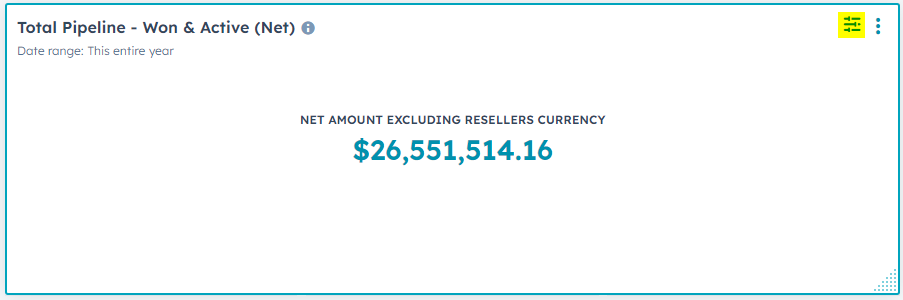
On the right side of the report, locate the "Filters" section. Scroll down to the bottom where you see the "And" button. If there is no "And" button available, see section 2. Filtering for business unit using customization feature, down below.
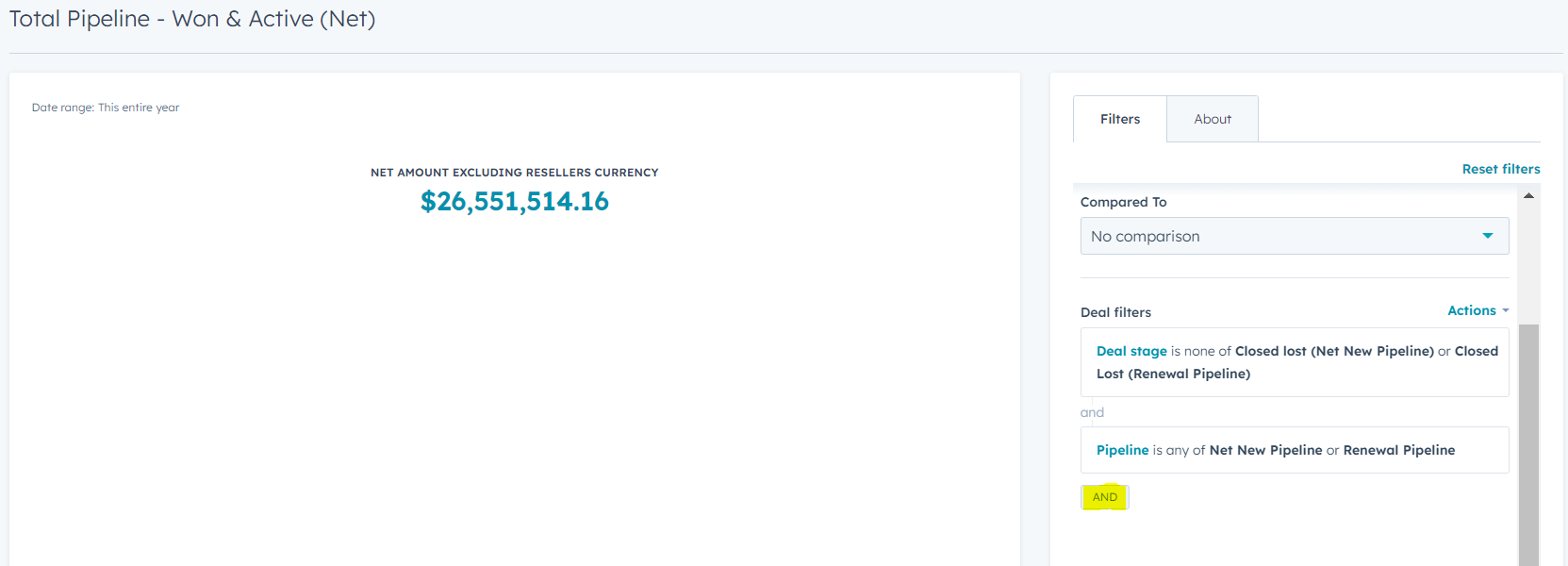
This is where you can filter for business unit if it is not already included as a filter. Hit the "And" button and type in "Business unit". Select the business unit you would like to view.
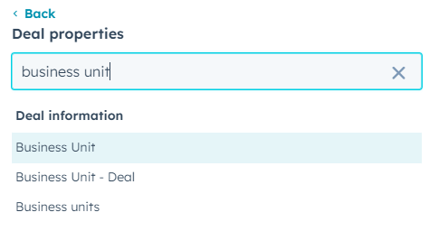
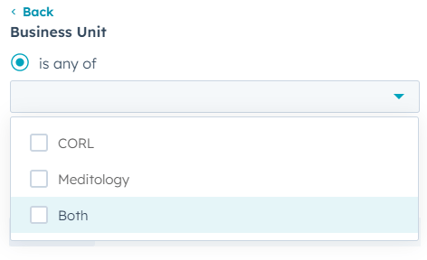
The information in the report will update based on the new parameters.
2. Filtering for Business unit using the customization feature:
Click into the report you wish to filter by selecting the 3 dots at the top right. Once inside, in the filters section to the right, if there is an "And" option at the bottom, see the report above 1. Filtering a report by business unit.
There are several reports in the dashboards that will require the use of the "customize" feature to filter. You can do this by clicking into the report and selecting "Customize" at the bottom.
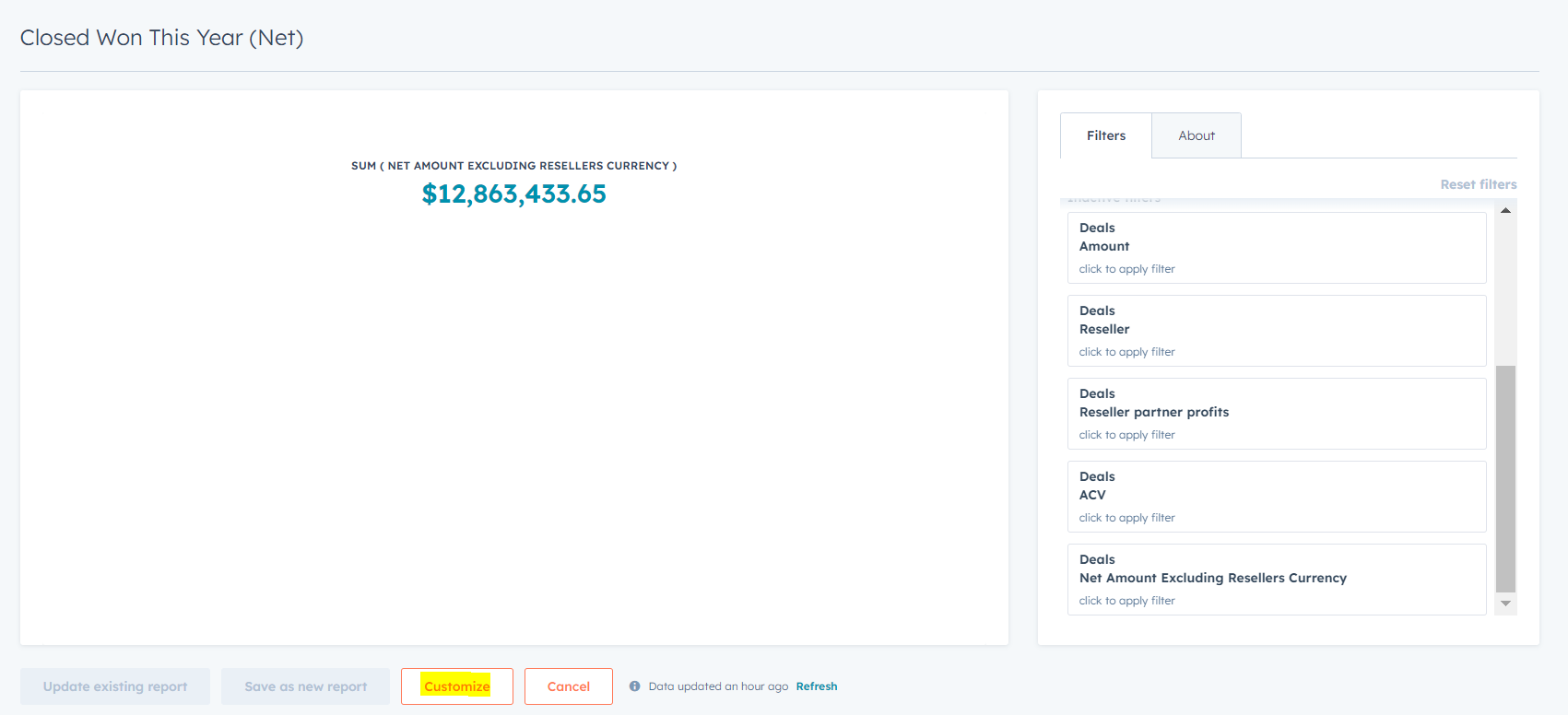
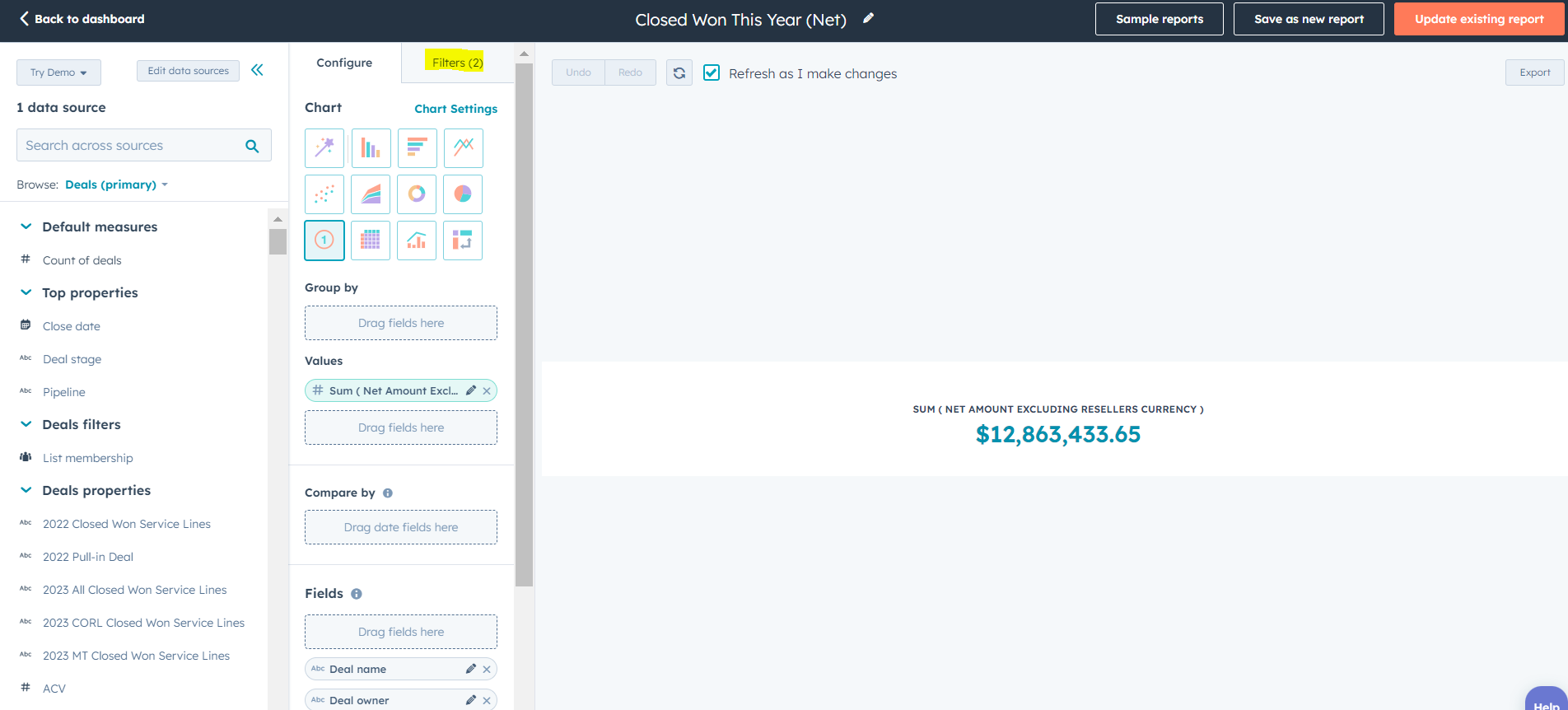
Once the page loads, locate the filters tab at the top.
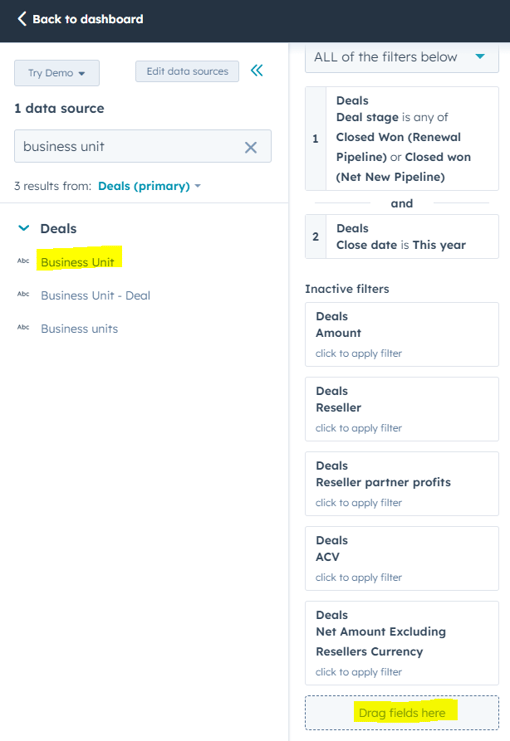
In the search field to the left, type in "Business Unit" and drag and drop it into the filter section at the bottom.
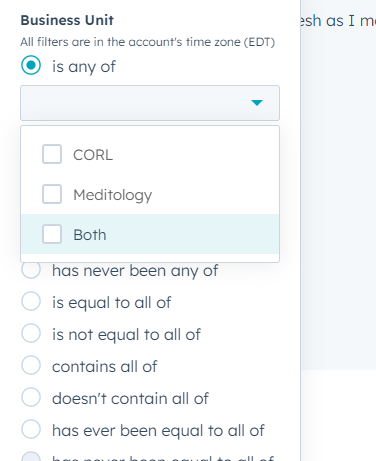
Once you have dragged and dropped the "Business Unit" property into the filters section, click on it and choose "is any of" and select the business unit needed.
Hit apply at the bottom and the information to the right will update. It is important that you leave the report without saving it so that it resets to the default values. If you need the updated information you can clone or export the report. You can export this information be selecting export at the top right, or if its a number, by clicking it and selecting export. For more information on exporting from a report see the report "How can I export a report in HubSpot?". You can clone it by selecting "Save as new report" at the top right. This will save the report with your new filters to your own reports.
Please note: Information regarding RITHM deals that have both business units is kept in its own reports. You can view information regarding RITHM opportunities in the Company Dashboard, the CORL Financial Dashboard, and the Meditology Financial dashboard." For additional information regarding RITHM opportunities, see the articles "How can I find RITHM opportunities for Meditology?" and "How can I find RITHM opportunities for CORL?".