![corl-logo-color ICON-1.png]](https://knowledgebase.corltech.com/hs-fs/hubfs/corl-logo-color%20ICON-1.png?height=40&name=corl-logo-color%20ICON-1.png)
Viewing Churned Accounts in HubSpot:
Navigate to the "CORL Financial Dashboard". To do this, log into HubSpot, navigate to the Reports tab at the top of the screen, click it and select Dashboards. If you do not have access to HubSpot, or the Reports tab is not showing, please reach out to the HubSpot Administrator for access and permissions.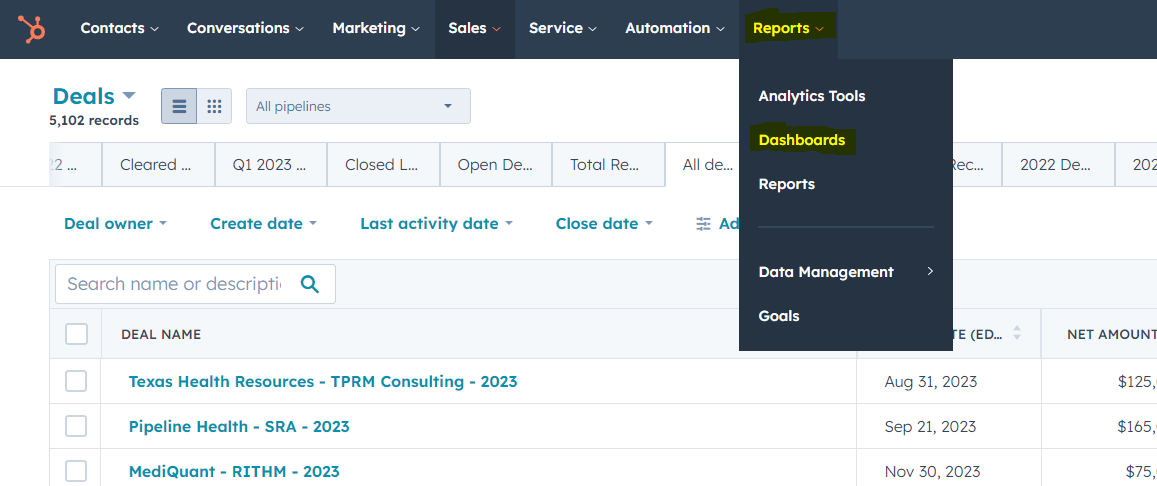
Once the dashboard view is pulled up, click on dashboards on the top left and type in "CORL Financial Dashboard". For a breakdown of the reports in this dashboard, please see the articles "CORL Financial Dashboard Breakdown".
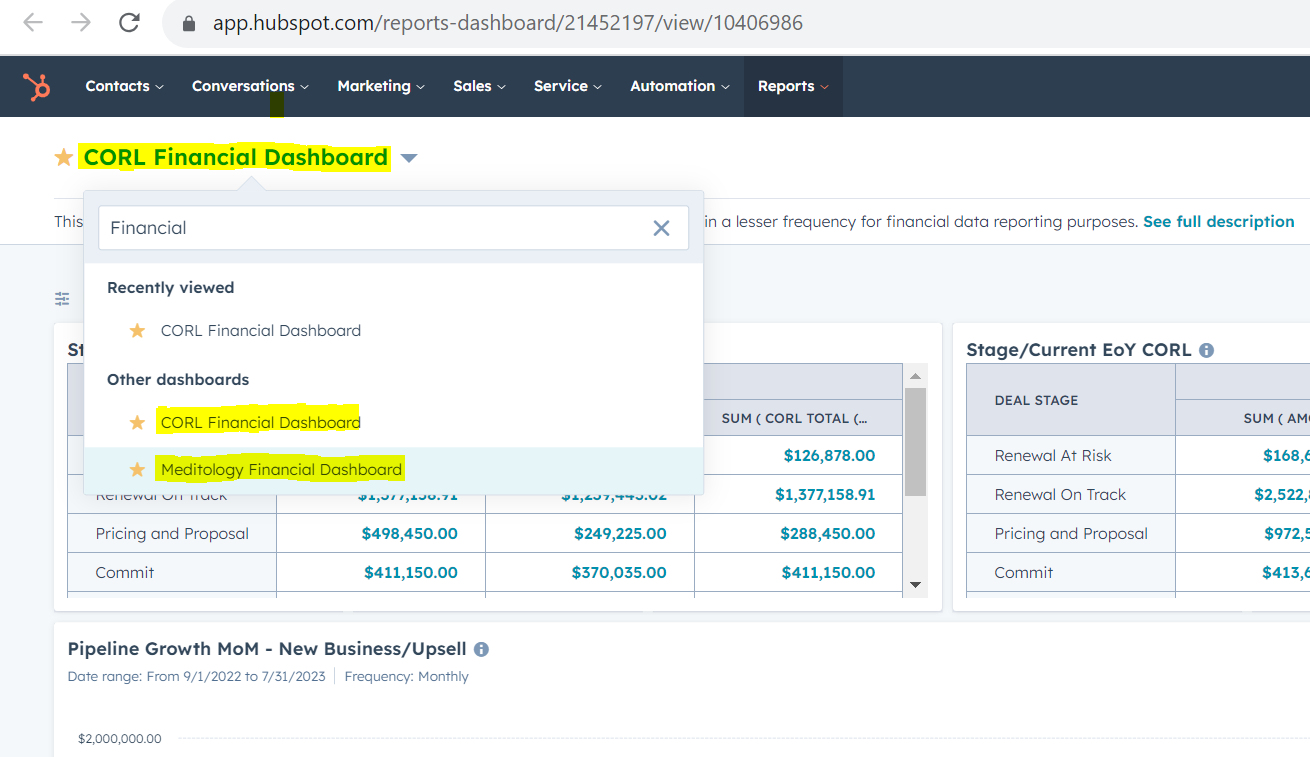
Please note: You can favorite this dashboard (and any others) by hitting the star to the left of the name. This will pin the dashboard to the top of the dashboard search bar for future reference.
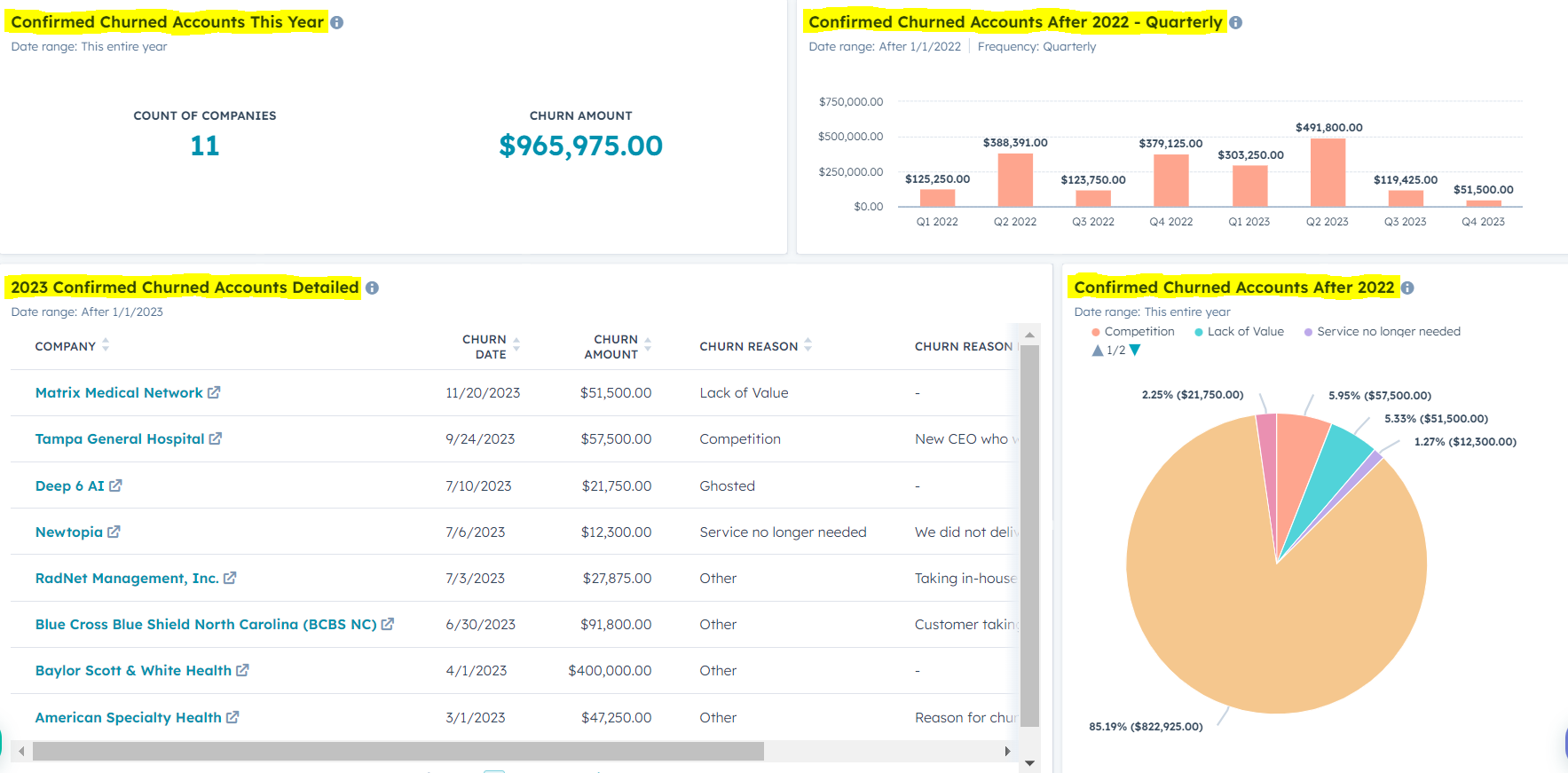
Once you are inside either the "CORL Financial Dashboard", scroll down until you find the reports with Churn in the title. Examples of Churn reports are: Confirmed Churn Accounts This Year, Confirmed Churned Accounts After 2022 - Quarterly, 2023 Confirmed Churned Accounts Detailed, and Confirmed Churned Accounts After 2022 and can be seen in the screenshot below. Please note: these are example numbers, you must navigate to the dashboard for current data.
For information on Meditology Churn accounts, see the article "How can I view churned accounts for this year for Meditology?" here.